A deep dive into setting up the Somfy TaHoma Switch, from motor to smart shading

Somfy TaHoma Switch Setup

From motor to smart shading

Today’s motorized blinds are no longer just about opening and closing with a remote.

When a motorized shading system is connected to Somfy TaHoma Switch, we can bring all the devices together in one system and extend it to smartphone control, including creating scenes and schedules for everyday living.

In this article, Starboard Design walks you through setting up the TaHoma Switch — from initial system setup and network connection to adding and managing motorized shading devices.

What is the TaHoma Switch?

Tahoma Switch From motor to smart home


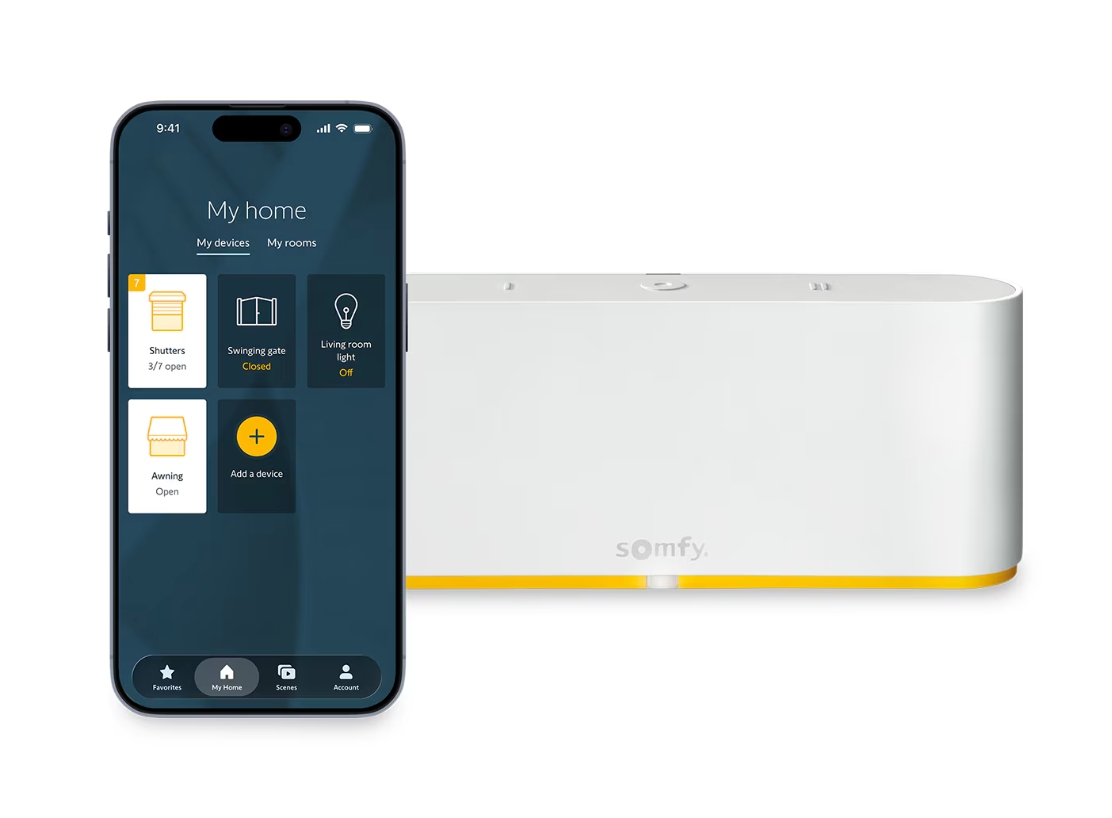
Somfy TaHoma Switch It acts as the hub that connects motorized shading systems to the smart home.

Instead of controlling each motor separately, TaHoma brings all compatible devices into one system that you control through the TaHoma app.

For example:

  • Motorized roller blinds
  • Motorized curtains
  • Motorized awnings
  • Vertical awnings
  • Zip blinds
  • Compatible Somfy devices

Connectivity depends on each product’s motor model and control technology.

1. Prepare your equipment before setup

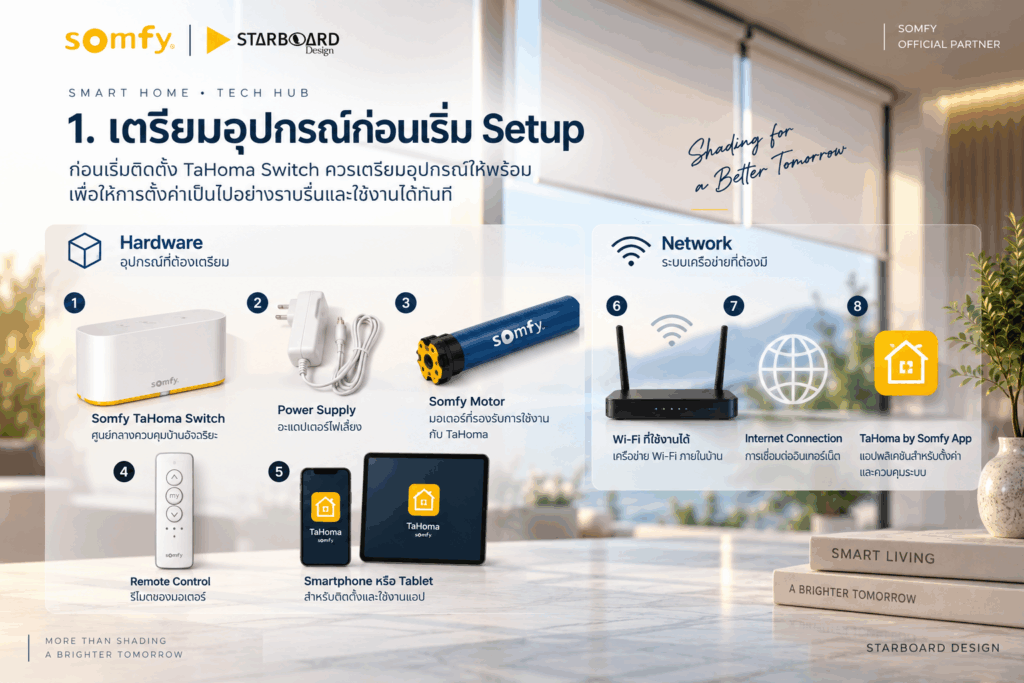
Before installing the TaHoma Switch, have the following ready:

Hardware

  • Somfy TaHoma Switch
  • Power Supply
  • A compatible Somfy motor
  • The motor’s remote control
  • A smartphone or tablet

Network

  • Working Wi-Fi
  • Internet Connection
  • TaHoma by Somfy App

Tahoma Setup Preparation

You should also know the motor model and type of system being used before you start pairing.

Starboard Technical Tip:
Checking the compatibility of motors and control systems before starting is a key step — especially on projects with several motor models or other smart-home systems working together.

2. Start setting up the TaHoma Switch

First, connect the TaHoma Switch to its power supply.

Then open TaHoma App and start the setup process.

The app guides you through each step to connect the TaHoma Switch to the system.

In Starboard’s video, we show the setup process from the actual device through to configuration on a smartphone.

3. Connect the TaHoma Switch to Wi-Fi

Next, connect the TaHoma Switch to the Wi-Fi at the installation site.

This step is important because TaHoma is the go-between for communication between the motorized shading system and the app.

Things to consider in a real installation

Choose a TaHoma location that:

  • has a suitable Wi-Fi signal
  • is easy to reach if the device needs servicing
  • has a suitable power supply
  • isn’t blocked by materials or structures that may interfere with communication

For large projects, plan the network and device locations at the system design stage.

4. Create or sign in to a Somfy account

Once the TaHoma Switch is connected to the network, you’ll be asked to create an account or sign in with a Somfy account.

This account is used to manage the installation and all the devices in the system.

So on a real installation you should plan account ownership and user access from the start — especially on projects with a homeowner, a building manager or multiple users.

5. Add motorized shading to the system

Once TaHoma is ready, the next step is to add devices.

Go to the add-device menu in the TaHoma app and choose the type of product you want to connect.

The system will then take you into the pairing process.

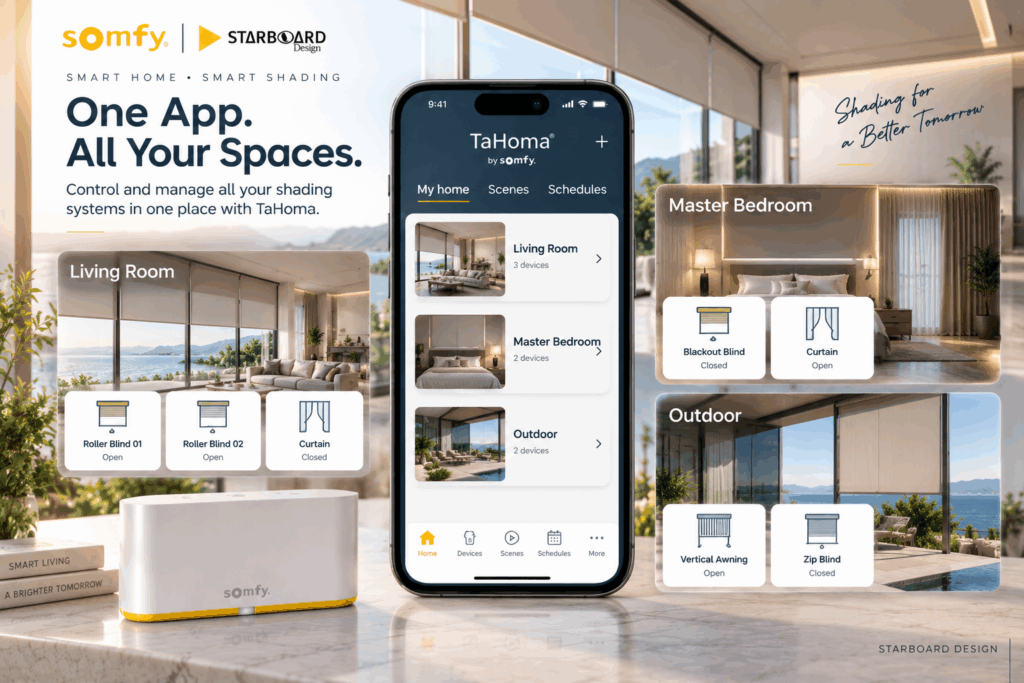
Example system layout

Living Room

  • Roller Blind 01
  • Roller Blind 02
  • Curtain

Master Bedroom

  • Blackout Blind
  • Curtain

Outdoor

  • Vertical Awning
  • Zip Blind

Tahoma setup app

Organising devices systematically from the start makes everyday use and future servicing much easier.

6. Pairing Somfy Motor

This is one of the steps that needs special attention.

Pairing depends on the motor model and control system used.

After adding a device in the TaHoma app, the system takes the installer through the pairing steps for that type of device.

Once pairing succeeds, test the motor immediately.

What to check

✓ Motor Direction
✓ Open / Close Operation
✓ Limit Position
✓ Remote Control
✓ TaHoma Communication
✓ Device Name
✓ Room Assignment

This is where installation by technicians who understand motorization really matters — getting the setup right from the start reduces problems later.

7. Name your devices

Once a motor has been added, give the device a clear name

For example:

Living Room – Roller Blind 01

Master Bedroom – Blackout Blind

Terrace – Vertical Awning

rather than a hard-to-remember one such as

Motor 01 / Motor 02 / Motor 03

When a project has many motors, systematic naming helps both users and the service team.

8. Organise devices by room

After naming, you can place each device in the correct room.

For example:

Living Room

Roller Blind 01
Roller Blind 02
Curtain

Bedroom

Blackout Blind
Curtain

Outdoor

Vertical Awning
Zip Blind

Once everything is organised, users can control devices by area much more easily.

9. User Management

For homes or projects with several users, you can manage user access:

For example:

  • Homeowner
  • Family members
  • Property Manager
  • Building Manager
  • System administrator

For large projects, setting appropriate user permissions keeps the system organised and more secure.

10. From motorized shading to smart shading

This is where TaHoma starts to set the system apart from ordinary motorized blinds.

Instead of operating one device at a time, we can create Scene so several devices work together.

For example:

☀️ Morning

Open the bedroom and living-room blinds at a set time

🏠 Leaving Home

Close some blinds or awnings when you leave home

🌙 Night

Close the bedroom blinds and blinds in areas that need privacy

🎬 Movie Time

Close blinds to reduce light from outside
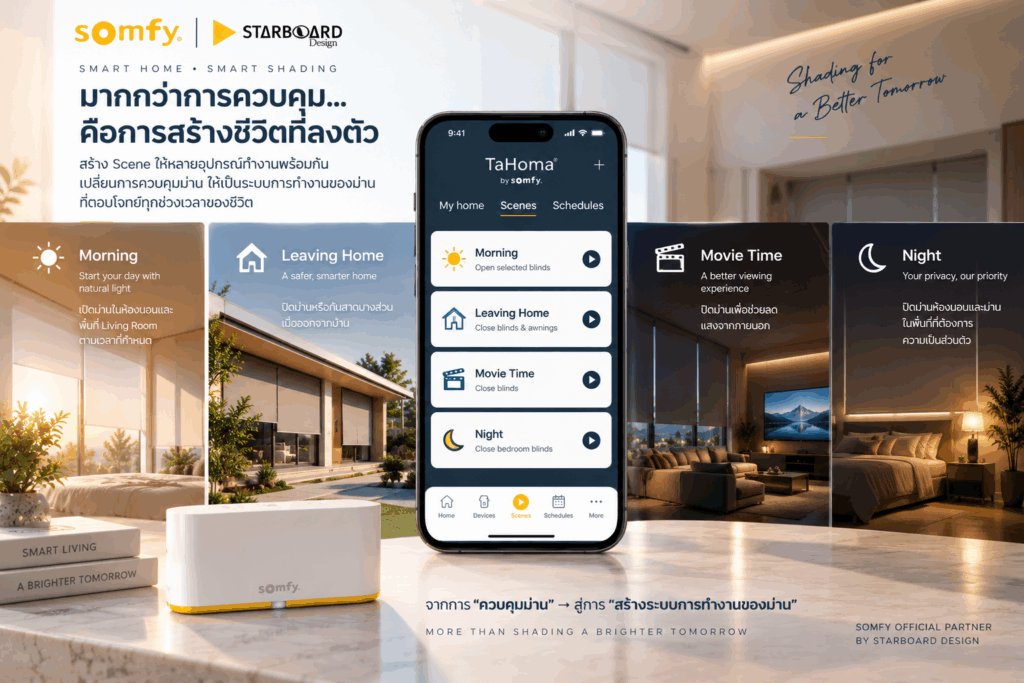
Tahoma Scenes

The key idea is

moving from “controlling blinds” → to “designing how your blinds work”

11. Schedule & Automation

Once you have scenes, you can also combine them with schedules:

For example:

07:00
Open the bedroom blinds

09:00
Close some blinds when nobody is home

18:00
Open or adjust blinds to let in evening light

22:00
Close the blinds for the night
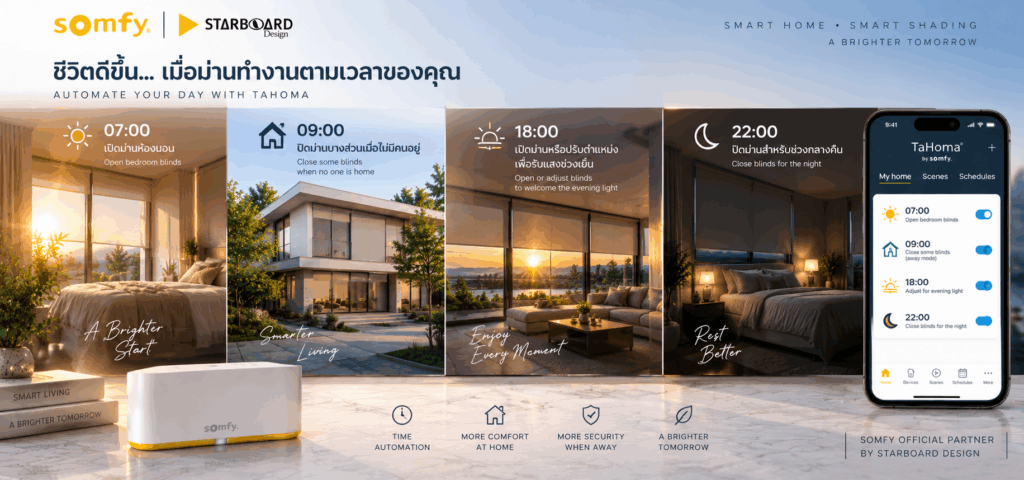
Tahoma Schedules

These settings let the shading system follow the user’s lifestyle much more closely.

12. Why is setup just as important as installing the motor?

Many people think smart shading just means connecting TaHoma to Wi-Fi and you’re done.

In reality, the system has many parts,
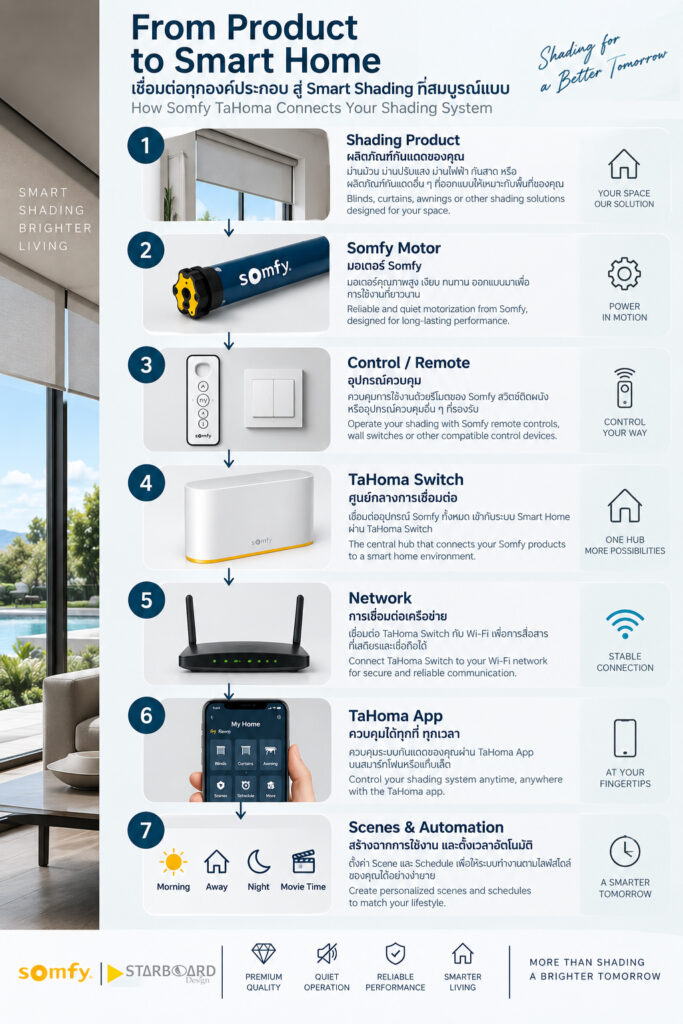
Tahoma Infographic

and every part must work together correctly.

So the user experience depends not only on the quality of the motor, but also on system design, installation and configuration as well.
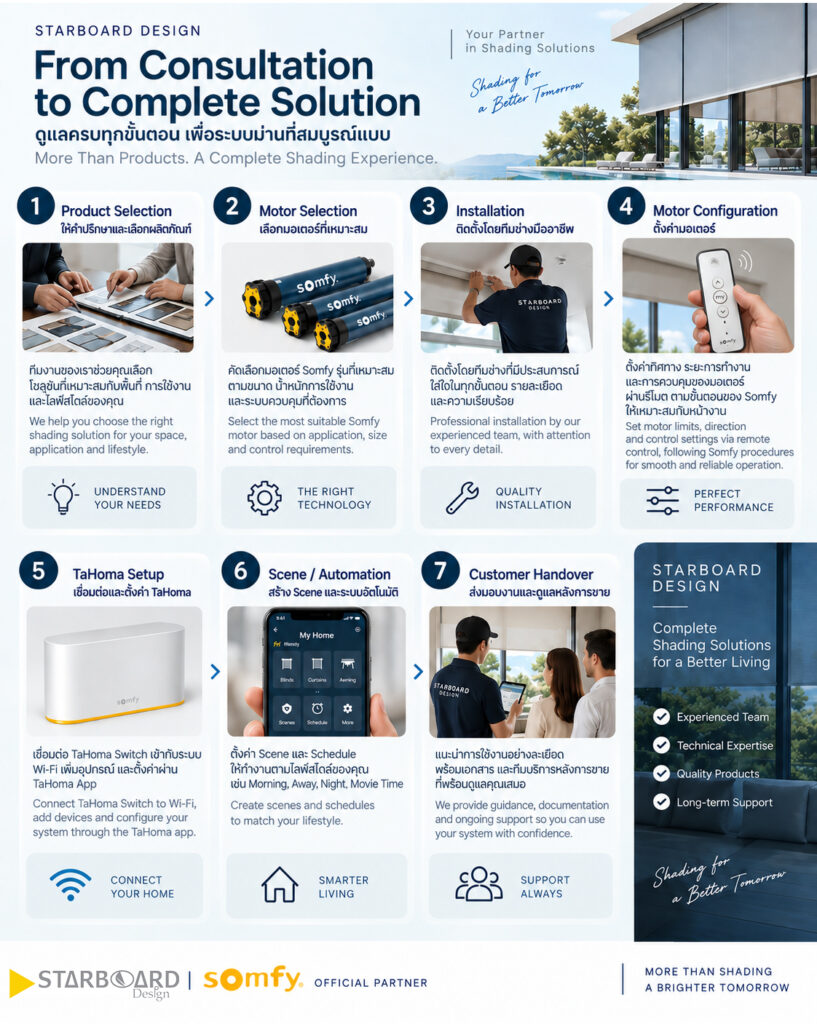
13. Starboard Design and smart shading

Starboard Complete solution

At Starboard Design, we see motorized shading as Complete System

Our work doesn’t end with installing blinds or motors — we can take care of the whole process, making us a good fit for homes, commercial projects and work that needs smart-home integration.

Summary

A good motorized blind installation isn’t just about making the blinds open and close.

It’s about designing the system so that the motor, controls, network and smart home all work together properly.

Somfy TaHoma Switch It takes motorized shading a step further — from individual control to Connected & Automated Shading

And at Starboard Design, we don’t see ourselves as installing “motors for blinds”.

We’re designing shading systems that fit around people’s lives.

From Motor to Smart Home.

From motor to smart home : Starboard X Somfy

Start typing and press Enter to search

ไทยEnglish